
Welcome to the third post in the Private Link Reality Bites series! Before we begin, let me recap the existing episodes of the series:
- Private Link reality bite #1: endpoints are an illusion (control plane vs data plane)
- Private Link reality bite #2: your routes might be lying (routing in virtual network gateways)
- Private Link reality bite #3: what’s my source IP (NAT)
- Private Link reality bite #4: Azure Firewall application rules
- Private Link reality bite #5: NXDomainRedirect (forwarding failed DNS requests to the Internet)
Big shoutout here to my esteemed colleague and oracle for Azure Networking Daniel Mauser. If you don’t know his GitHub site, make sure you check it out! Thanks as well to Matt Felton, he has been putting great content out there for all of us, and in this post I will refer to an article of his from August 2024, Inspecting traffic to Private Endpoints Revisited.
After the last post on this series about routing for private endpoints, in this one we are going to dive into how to troubleshoot the source IP address that clients use to access private endpoints when going through Azure Firewall using network rules and find out whether you need Network Address Translation (NAT) or not. Spoiler alert: some times you do, some times you don’t.
As in the previous post, this is the topology that we will be working on:

IMPORTANT: the previous design doesn’t reflect best practices, but it is just a test bed designed to expose certain behaviors of the Private Link technology in Azure.
As a reminder, we have everything working with this configuration:
- Private endpoints network policies for routing are enabled in the private endpoint subnet.
- There is a user defined route in the Gateway Subnet sending traffic addressed to the private endpoints to the Azure Firewall.
- The Azure Firewall is configured with a network rule to allow all traffic.
Source IP address in databases
If your private endpoint is a database, the easiest way of getting the source IP address is sending a query that retrieves the IP address that the server sees as source. Since I am using a Linux virtual machine as client, I needed to install a database client. I am using sqlcmd which I installed using these instructions.
After that, we need the query to retrieve the IP address that the server sees from us. We will be using this: SELECT CONNECTIONPROPERTY("client_net_address"). I am using a bit of awk magic courtesy of ChatGPT to reduce the verbosity of the answer. Here the output when accessing the private endpoints from the on-premises virtual machine:
jose@onpremvm:~$ sqlcmd -S sqltest1138australia.database.windows.net -U jose -P 'supersecret' -Q 'SELECT CONNECTIONPROPERTY("client_net_address")' \
   | awk '{ for (i=1; i<=NF; i++) if ($i ~ /^[0-9]+\.[0-9]+\.[0-9]+\.[0-9]+$/) print $i }'
192.168.0.4
As you can see, the SQL server sees the original IP address of the client, not that of the firewall. The reason is because the firewall is configured with the default SNAT (Source Network Address Translation) policy, which will leave private IP addresses (RFC 1918) untranslated.
Source IP address in Storage Accounts
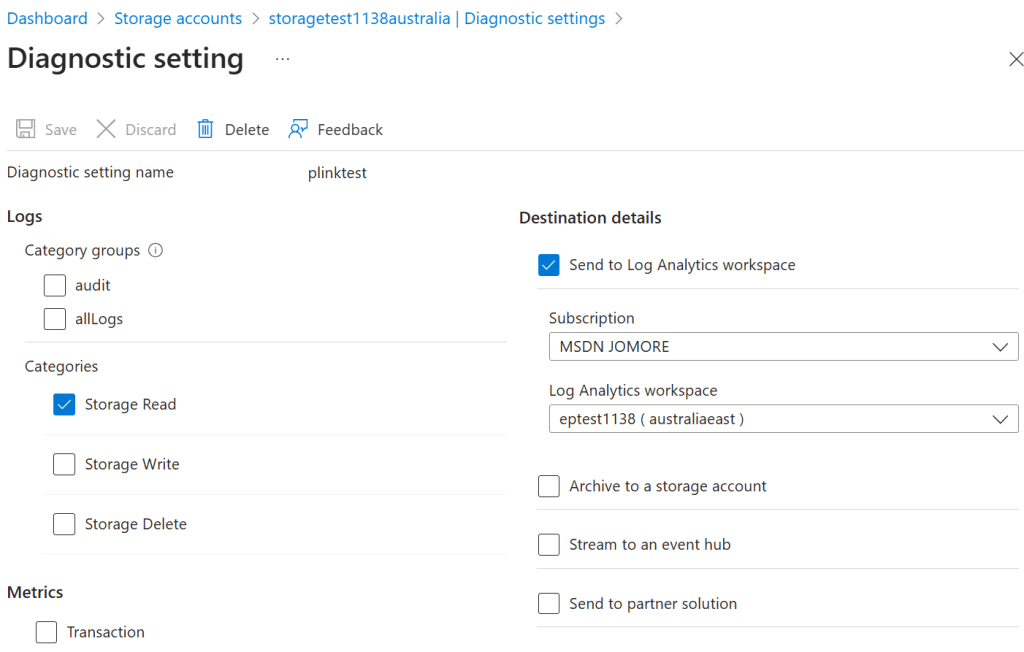
Alright, how do you manage to see the source IP address in other services that not offer the convenience of queries that return the client’s IP? Your next best friend are diagnostic logs. If you enable diagnostic logs in the storage account, you can easily see the source IP address that clients are using. By the way, this method will work for most Azure services, not only storage accounts. Here you see what logs I enabled for my storage accounts (I only need read logs, since I am only downloading the blobs in my tests):
And here a sample KQL query and a CLI command to access the logs right from your terminal. Of course, you can use the Log Analytics portal if you prefer.
❯ blob_query='StorageBlobLogs | where TimeGenerated > ago(10m) | project TimeGenerated, AccountName, CallerIpAddress'
❯ az monitor log-analytics query -w $logws_customerid --analytics-query $blob_query -o table
AccountName               CallerIpAddress    TableName      TimeGenerated
------------------------  -----------------  -------------  ----------------------------
storagetest1138germany    192.168.0.4:36260  PrimaryResult  2025-01-19T19:14:43.975385Z
storagetest1138australia  192.168.0.4:51118  PrimaryResult  2025-01-19T19:14:37.8686829Z
Will I ever need NAT?
As you saw earlier, both traffic flows from on-premises (to the SQL database and to the storage account) did not require Network Address Translation. It is not trivial to understand how the Azure SQL server and the storage accounts are able to return traffic to the firewall, if the source IP is the onprem machine. The reason is because traffic between the firewall and the Azure service is encapsulated in a tunnel, so the Azure service will just send the return packets through that tunnel.
I have been asked whether private endpoints also add /32 routes to the services side of the Private Link connection (technically called Private Link Service). The answer is that the SDN magic does that for you, thanks to that underlying tunnel technology used between the client and the target service.
And yet, the official Azure documentation about this setup in Azure Firewall scenarios to inspect traffic destined to a private endpoint recommends using Network Address Translation or application rules to change the source IP address. Application rules in the Azure Firewall require you to consider the DNS resolution in the Azure Firewall subnet too, but I will leave that for a future reality bite and we will stick to network rules on this one.
Going back to the requirement of NAT: why would Microsoft say that, if we have seen that no NAT is required? Well, because it is not always like that. Let’s do a different test, and try to connect to the private endpoints not from on-premises, but from a virtual machine deployed in the hub, where exactly the same routing table is applied as in the GatewaySubnet as described in the previous post in this series.
jose@onpremvm:~$ curl https://storagetest1138australia.blob.core.windows.net/test/helloworld.txt
Good morning from Australia

jose@onpremvm:~$ curl https://storagetest1138australia.blob.core.windows.net/test/helloworld.txt
Good morning from Australia

jose@hubvm:~$ sqlcmd -S sqltest1138australia.database.windows.net -U jose -P 'Microsoft123!' -Q "SELECT @@VERSION"
Sqlcmd: Error: Microsoft ODBC Driver 18 for SQL Server : Login timeout expired.
Sqlcmd: Error: Microsoft ODBC Driver 18 for SQL Server : TCP Provider: Error code 0x102.
Sqlcmd: Error: Microsoft ODBC Driver 18 for SQL Server : A network-related or instance-specific error has occurred while establishing a connection to sqltest1138australia.database.windows.net. Server is not found or not accessible. Check if instance name is correct and if SQL Server is configured to allow remote connections. For more information see SQL Server Books Online..
Weird. With this configuration everything should work, and yet it doesn’t. Storage accounts work just fine, Azure SQL does not. We can have a look at the firewall and see the logs from the SQL connection attempt (for clarity I removed the logs from the access to Azure Storage):
❯ az monitor log-analytics query -w $logws_customerid --analytics-query $fw_query -o table
Action_s    Category         DestinationIp_s    Fqdn_s    SourceIP     SourcePort_d    TableName      TimeGenerated
----------  ---------------  -----------------  --------  -----------  --------------  -------------  ---------------------------
Allow       AZFWNetworkRule  10.13.77.6                   10.13.76.36  60957           PrimaryResult  2025-01-22T22:18:29.569437Z
Allow       AZFWNetworkRule  10.13.77.6                   10.13.76.36  60957           PrimaryResult  2025-01-22T22:18:30.607454Z
Allow       AZFWNetworkRule  10.13.77.6                   10.13.76.36  60957           PrimaryResult  2025-01-22T22:18:31.631612Z
Allow       AZFWNetworkRule  10.13.77.6                   10.13.76.36  60957           PrimaryResult  2025-01-22T22:18:32.655383Z
Allow       AZFWNetworkRule  10.13.77.6                   10.13.76.36  60957           PrimaryResult  2025-01-22T22:18:33.681438Z
Allow       AZFWNetworkRule  10.13.77.6                   10.13.76.36  60957           PrimaryResult  2025-01-22T22:18:34.703542Z
Allow       AZFWNetworkRule  10.13.77.6                   10.13.76.36  60957           PrimaryResult  2025-01-22T22:18:36.753927Z
As you can see from the SourcePort_d column, it looks like the client is retrying the connection, but there seems to be no answer. There are many possible reasons for this, and different ways in which you could troubleshoot it (like VNet Flow Logs or Azure Firewall AZFWFlowTrace logs), but I am going to skip that for the sake of brevity and go straight to the solution. Let’s enable NAT in the firewall and see what happens. Here how you can change the default policy in the firewall with CLI:
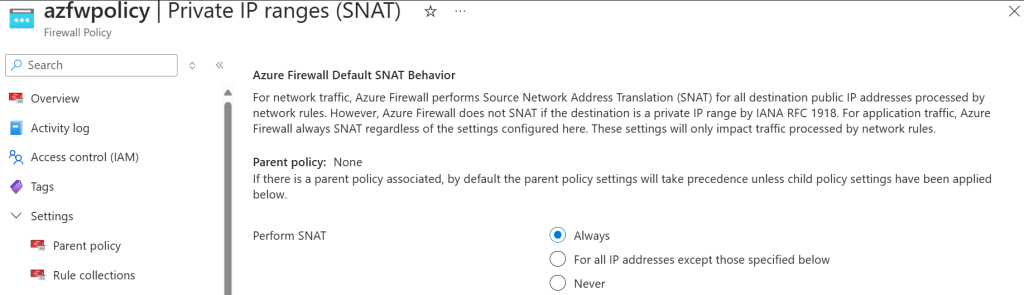
az network firewall policy update -n $azfw_policy_name -g $rg --private-ranges '[]' -o none
This is telling the firewall that there are no private ranges, so essentially to NAT all traffic. You can verify that in the portal too:
If we try again, magic! Now calls to the private endpoint for the Azure SQL endpoint work from the hub VM as well, and you can see that the source IP address is one of the Azure Firewall instances (since it belongs to the Azure Firewall subnet):
jose@hubvm:~$ sqlcmd -S sqltest1138australia.database.windows.net -U jose -P 'Microsoft123!' -Q "SELECT @@VERSION"
------------------------------------------------------------------------------------------------------------------------------------------------------------------------------------------------------------------------------------------------------------------------------------------------------------
Microsoft SQL Azure (RTM) - 12.0.2000.8
        Oct  2 2024 11:51:41
        Copyright (C) 2022 Microsoft Corporation
(1 rows affected)

jose@hubvm:~$ sqlcmd -S sqltest1138australia.database.windows.net -U jose -P 'Microsoft123!' -Q 'SELECT CONNECTIONPROPERTY("client_net_address")' \
   | awk '{ for (i=1; i<=NF; i++) if ($i ~ /^[0-9]+\.[0-9]+\.[0-9]+\.[0-9]+$/) print $i }'
10.13.76.69
And sure enough, in the firewall logs you see these new connection logs without any retries:
❯ az monitor log-analytics query -w $logws_customerid --analytics-query $fw_query -o table
Action_s    Category         DestinationIp_s    Fqdn_s    SourceIP     SourcePort_d    TableName      TimeGenerated
----------  ---------------  -----------------  --------  -----------  --------------  -------------  ---------------------------
Allow       AZFWNetworkRule  10.13.77.6                   10.13.76.36  45431           PrimaryResult  2025-01-22T22:22:46.06773Z
Allow       AZFWNetworkRule  10.13.77.6                   10.13.76.36  52433           PrimaryResult  2025-01-22T22:23:00.360804Z
Allow       AZFWNetworkRule  10.13.77.6                   10.13.76.36  60957           PrimaryResult  2025-01-22T22:18:29.569437Z
Allow       AZFWNetworkRule  10.13.77.6                   10.13.76.36  60957           PrimaryResult  2025-01-22T22:18:30.607454Z
Allow       AZFWNetworkRule  10.13.77.6                   10.13.76.36  60957           PrimaryResult  2025-01-22T22:18:31.631612Z
Allow       AZFWNetworkRule  10.13.77.6                   10.13.76.36  60957           PrimaryResult  2025-01-22T22:18:32.655383Z
Allow       AZFWNetworkRule  10.13.77.6                   10.13.76.36  60957           PrimaryResult  2025-01-22T22:18:33.681438Z
Allow       AZFWNetworkRule  10.13.77.6                   10.13.76.36  60957           PrimaryResult  2025-01-22T22:18:34.703542Z
Allow       AZFWNetworkRule  10.13.77.6                   10.13.76.36  60957           PrimaryResult  2025-01-22T22:18:36.753927Z
These logs show the actual IP address of the client, so even if the Azure SQL server doesn’t see it, if you need these IP addresses you can extract them from the firewall logs.
Good news for NVA users
If you are using a Network Virtual Appliance (NVA) instead of Azure Firewall, there are good news for you! Microsoft released a new feature some time ago that eliminates this description. You can find more about it here.
It is essentially a flag called disableSnatOnPL that you enabled in the client (in the NVA), and this makes everything work. I was thinking about creating a Reality Bite for that, but I wouldn’t be able to improve Matt Felton’s great blog on this topic.
Will this feature ever make it to Azure Firewall? Let’s hope so!
Conclusion
In this post I showed you how to inspect the source IP address that your clients are using with two methods: sending queries to a service such as Azure SQL and inspecting the diagnostic logs of a service such as Azure Storage, both from a virtual machine on-premises and from a virtual machine in the hub.
We have seen as well that some flows to certain Azure services such as Azure SQL will require Network Address Translation, while others won’t. This is the reason why Microsoft documentation recommends always to use NAT, to be on the safe side.
In the next Private Link reality bite we are going to explore what happens when following the other Microsoft recommendation of using application rules in the Azure Firewall instead of network rules.
 Cloudtrooper
[…] Private Link reality bite #3: what’s my source IP (NAT) […]
LikeLike
[…] Private Link reality bite #3: what’s my source IP (NAT) […]
LikeLike
I am loving this series! Thanks for sharing 🙂 I am curious about why the HUB VM couldn’t reach the SQL endpoint, contrary to what happened with the onprem VM. I got it that NAT solved the issue, but we don’t know why the issue ever happened. Can you clarify?
LikeLike
Frankly, I don’t know. AzSQL has this limitation, while AzStorage doesn’t. I guess it depends on how each Azure service implemented their side of Private Link.
LikeLike
[…] Private Link reality bite #3: what’s my source IP (NAT) […]
LikeLike
[…] Private Link reality bite #3: what’s my source IP (NAT) […]
LikeLike
[…] Private Link reality bite #3: what’s my source IP (NAT) […]
LikeLike
Thank you for the entire series! I’m delighted to have found such great content.I didn’t understand why, without SNAT enabled, the VM from the hub vnet cannot access the SQL DB. Is this connected with asymmetric traffic flow? Could you please explain this?
LikeLike
Hey Jaroslaw, I am happy you enjoyed your series! Yes, depending on the service, when the service sees a packet coming from a different IP to the VM at the end of the tunnel, it might get confused. This only happens with certain services (for example with Azure SQL, but not with Azure Storage), and in certain situations (depending on whether the VNets from the client VM, the firewall and the endpoint are the same or not).
Not this is not traditional networking but SDN “magic”, so you probably shouldn’t think too deep on what it is going on under the covers.
Hope this helps!
LikeLike