
If you are working with Azure, you will probably have some logs or data stored in a repository such as Azure Data Explorer or Log Analytics. Kusto Query Language (KQL) is what you use to extract information from these repositories.
KQL is similar to SQL in that it allows you a rich set of operations with your data, such as joining different tables with each other, aggregating data, etc. You could even (mis)use Azure Data Explorer as a backend for an application, storing data across multiple tables, which is exactly what I am doing for an internal application I just helped to develop.
The difference between Azure Data Explorer (ADX) and Log Analytics is who manages the cluster where your data is stored. In the case of Log Analytics, you are sending your logs to ADX clusters (aka Kusto clusters) managed by the Azure Monitor service, so you don’t have admin access to those for operations such as modifying existing tables or creating additional ones. However, you can also create your own ADX clusters to store your data, and in certain situations that might be cheaper than using Log Analytics. For example, check this excellent blog post from my esteemed colleague Guillaume Beaud on how to reduce the cost of Azure Firewall by sending logs to your own ADX cluster.
For the rest of the post I will assume that you have your own ADX cluster and admin access to it.
Problem statement
What am I trying to do here? My use case is the following: the application data stored in my ADX cluster needs to synchronize to external sources, so I need to run some queries on a regular basis to update my Kusto tables with that external data. Details about the application or its data are not relevant for this exercise, the important point is how to send queries to your ADX cluster on a periodic basis.
Fortunately, Power Automate has a connector for ADX that takes most of the complexity to interact with Azure Data Explorer away. This connector offers a couple of different actions:

The two actions that I find myself using most frequently are:
- Run KQL query: to extract data from your tables. Subsequent actions in the flow can leverage this data to perform additional logic.
- Run async control command: you use “control commands” in Kusto to modify the contents of the data in ADX: create/drop tables, and append/delete/modify records in each table. Control commands can be run either in synchronous or asynchronous mode, so your queries used in this action should include the “async” keyword (more to this later).
However, the documentation of the ADX connector is not clear enough (for me) to glue together different steps of my flow, so hence this blog with extra details to help others standing in front of a similar challenge.
The solution
I created a flow in Power Automate to send the queries I need with a “Recurrence” trigger. The flow is not too complicated, it looks like this:

The interesting thing is how each action can use the information retrieved from the previous ones, so let’s look at each step individually:
Retrieving data from ADX with a Kusto query
This is the first stage of our journey. In the overall flow I am focusing on this step:

This one will be easy: you just add an action of the type “Run KQL query”, you fill in your cluster name, database name and query, and you’re off to the races. For reference, here is what the code for this step looks like for me:
{
  "type": "OpenApiConnection",
  "inputs": {
    "parameters": {
      "body/cluster": "https://yourcluster.kusto.windows.net",
      "body/db": "yourdatabase",
      "body/csl": "@{variables('varServicesTable')} | where serviceId=='example'"
    },
    "host": {
      "apiId": "/providers/Microsoft.PowerApps/apis/shared_kusto",
      "connection": "shared_kusto",
      "operationId": "listKustoResultsPost"
    }
  },
  "runAfter": {
    "Import_SF_services_to_R2D": [
      "Succeeded"
    ]
  },
  "trackedProperties": {
    "serviceId": ""
  }
}
There are a couple of interesting things here:
- The action is using the operation
listKustoResultsPost. You can find more about this operation in the official docs here. - You can leverage previously initialized variables in your code with the syntax
@{variables('yourVariableName')}.
If you do a test run of your flow you can inspect the output of this action. In my example it looks like this:

The important thing here is that the output we are interested in is called body. It will be JSON-based, and the actual response to the KQL query is stored in the key value of that JSON payload. Remember this, because we will use this in the next actions.
Referring to the KQL output
As a simple check that we can do something with the response we could just count the number of records returned by the query, and store that record count in a variable. For that you would need the action “Initialize variable” in the “Variable” action group. You can use the expression editor to define the value to assign the variable, starting with the function length, which as you can see is a collection-based function:
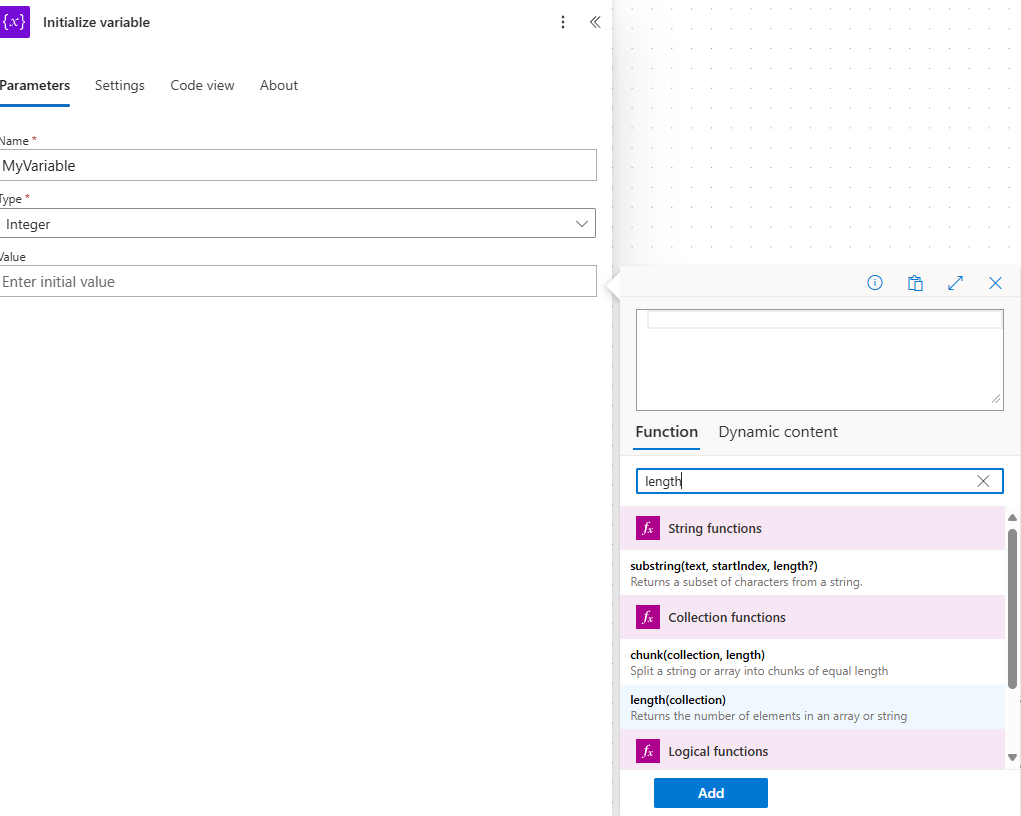
What are we going to measure the length of? Moving on to the “Dynamic content” of the expression builder, you can select the Body output property of the previous step:
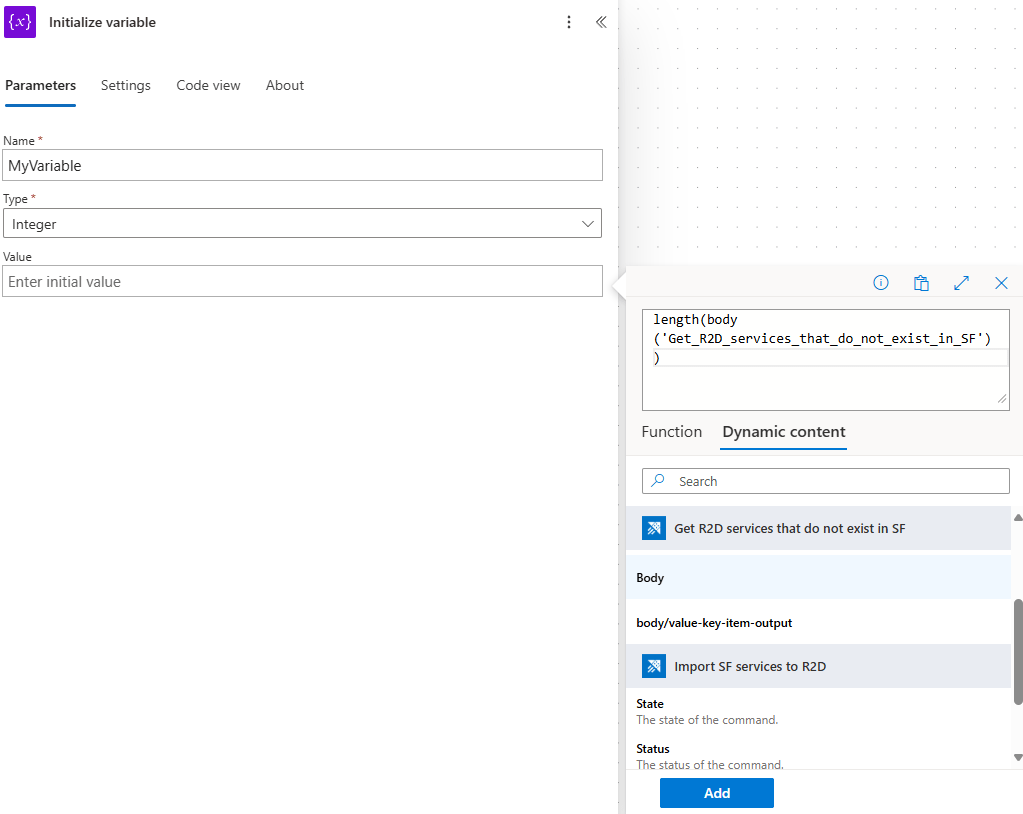
Note the case difference between what you see in the lower panel of the expression builder (“Body“) and what is actually added to the expression (“body“). Lower case is correct, as we saw in the previous section the name for the output property of the KQL action is “body” with lower “b”. But remember, the actual response is in the value property of the body, so we can add this manually using the syntax ?['value']. Our final expression looks like this:

Now you only need to click the “Add” button. There you go, if you followed me so far you already know the most important concept: how to access previous results of an action sending a KQL query to an ADX cluster. This is what the code of the variable initialization looks like:
{
  "type": "InitializeVariable",
  "inputs": {
    "variables": [
      {
        "name": "CountReturnedServices",
        "type": "integer",
        "value": "@length(body('Get_R2D_services_that_do_not_exist_in_SF')?['value'])"
      }
    ]
  },
  "runAfter": {
    "Get_R2D_services_that_do_not_exist_in_SF": [
      "SUCCEEDED"
    ]
  }
}
Running a For-Each loop on the query results
Another fairly typical task might be executing some activity for every record returned by the KQL query. You would need the “Apply for each” action, part of the “Control” group to create a loop structure:

You need to define the array of elements that you the loop will take as reference. The definition here is identical to the previous example we saw when counting records (obviously, excluding the length function):

Now you can define actions inside of the For-Each loop. For example, I am going to send an additional KQL query (a control command in this case) for each of the rows returned by a previous step. I will create another KQL query step, and in the query I will refer to the current item in the loop using the expression builder:

You can see that I chose the “Current item” property of the For-Each loop. That added the expression items('For_each_1') (“For each 1” is the name of my loop). Then I manually added the code to refer to the specific field in my query, in this case ?['serviceId'] (“serviceId” is a column in my Kusto table).
The Code view of this action is as follows:
{
  "type": "OpenApiConnection",
  "inputs": {
    "parameters": {
      "body/cluster": "https://yourkustocluster.kusto.windows.net",
      "body/db": "yourkustodatabase",
      "body/csl": ".update async table @{variables('varServicesTable')} delete D append A <|
      let D = @{variables('varServicesTable')}
      | where serviceId=='@{items('For_each_1')?['serviceId']}';
      let A = @{variables('varServicesTable')}
      | where serviceId=='@{items('For_each_1')?['serviceId']}'
      | extend isActive=false;"
    },
    "host": {
      "apiId": "/providers/Microsoft.PowerApps/apis/shared_kusto",
      "connection": "shared_kusto",
      "operationId": "runAsyncControlCommandAndWait"
    }
  }
}
I inserted line breaks in the previous output for readability, in the Power Automate portal you would see the line breaks translated to \n characters.. As you can see, you can use the expression @{items('Name_of_your_foreach_action')?['kql_query_field_name']} to refer to specific values of the row in the query results that the query is processing at this specific iteration of the For-Each loop.
Not the main topic of this article, but note how this is a control command, and consequently it is using the async keyword to be supported by the ADX action.
Wrap up
There you go! The combination of Power Automate and Azure Data Explorer aka Kusto allows you to take automated actions on a regular basis such as sending out notifications or updating other systems.
 Cloudtrooper